




Pricing
Products
Get Proxies
Resources
Language

Pricing -70%
Dynamic Residential

Dynamic Residential Traffic (GB)
Suitable for: Data collection, market research, and data collection.
Starting from
$0.49 /GB
Premium Dynamic Residential Traffic 
Suitable for:price monitoring, AI data scraping and other high-demand scenarios.
Starting from
$0.90 /GB

Dynamic Residential IP (Lines)
Suitable for: Email registration, web scraping, surveys, and other use cases.
Starting from
$0.027 /IP

Unlimited traffic - bandwidth
Suitable for: high-volume downloads of audio, video, and other data.
Starting from
$34.5/day

Unlimited Traffic - Port
Suitable for: questionnaire surveys, text and image downloads, and Brand protection.
Starting from
$0.31/Port/day
Static Residential
Products
Products
SERP API
Get real-time search engine results with multi-engine and multi-region support.
Dynamic Residential Traffic
Global resources with precise city-level positioning.
Unlimited Residential Traffic
Supports multiple ports and high bandwidth, unlimited traffic IPs with no extra fees.

Long-term Static ISP
Exclusive long-term static resources, providing unparalleled speed and reliability.
Popular Areas
Get Proxies
Resources
Get Started
IP Detection: Key Metrics and Tools Explained
 Elsa Ingrid Johansson
 2026-11-21
After setting up an IP address, many users visit an IP checking website to verify it. If the address and location look correct, they may assume everything is working as expected. However, there is much more to IP detection than these two details. Whether the ISP matches expectations, what type of network the IP belongs to, whether it has a history of abuse reports, and whether the browser exposes additional information can all affect the assessment.
Another challenge is that different platforms use different data fields and scoring standards. The same IP address may even produce different results across multiple websites. Relying on a single value can therefore lead to misleading conclusions. Understanding what the fields in an IP detection report actually mean, how to interpret conflicting results, and where to start when something looks unusual is essential.
IP detection is the process of collecting and examining information associated with an IP address through public IP databases, network ownership records, and connection analysis.
When a device accesses an external service, the destination website can see the public IP address (Public IP) used by the request. IP detection tools use this address to look up information such as geolocation, ISP, and ASN. Some platforms also incorporate security databases and browser-based tests to identify historical risk records and potential issues with the current connection environment.
IP detection generally involves three methods:
The main purpose of IP detection is to check whether the current network environment is stable, compliant, and suitable for specific business requirements. It can help identify network-related issues that may affect normal access and usage.
Key benefits include:
For businesses that rely on a specific network environment over an extended period, regular checks can help identify changes in network ownership or unusual connection behavior and provide useful information for maintaining stable operations.
IP detection typically covers four categories of information. Different tools may support different features, but most results can be understood through the following areas:
Different tools focus on different aspects of IP detection. Choosing one depends on the information you need to verify.
The following sections use three tools to explain important metrics related to basic IP information, abuse records, and connection environment testing.
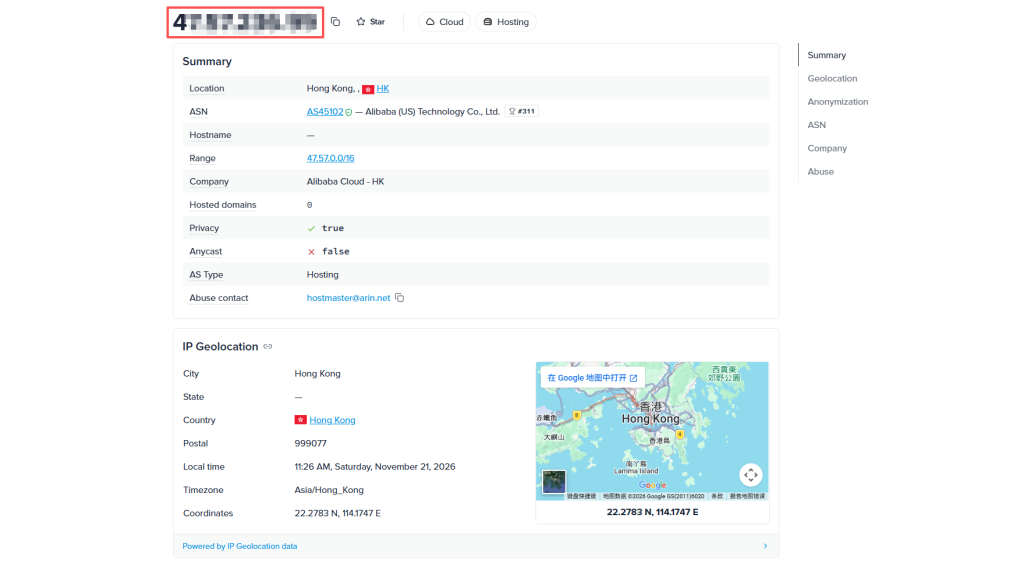
IP Address
The address at the top of the page is the public IP used to access external services. It is also an important reference point for external websites when identifying the source of network requests. Geolocation, ASN, ISP, and other details are generally looked up based on this address.
Country / Region / City
The IP Geolocation section displays the location associated with the IP address in the database (Hong Kong in the example shown). This information can help verify whether the IP’s country and region match business requirements. However, it does not represent the device’s actual physical location. The accuracy of the results also depends on the database source and how frequently it is updated.
ASN
The ASXXXX number shown in the Summary and ASN sections represents the Autonomous System to which the IP belongs. It can help identify the network organization associated with the IP and serves as an important reference when assessing its network source, such as residential broadband, mobile networks, or data centers.
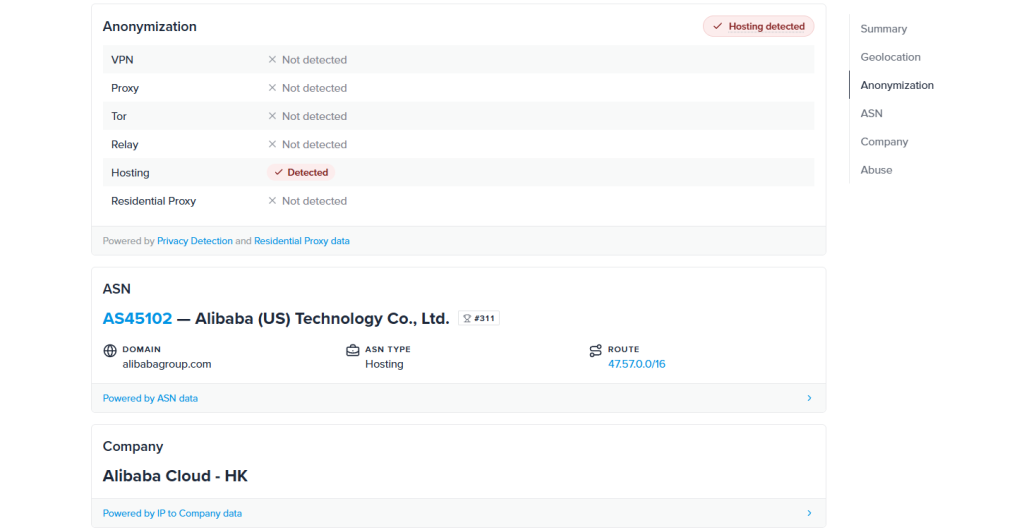
ISP / Org
The Company field displays the organization associated with the IP address (a cloud service provider in the example). Together with the ASN, this information helps users better understand the network organization and ownership details associated with the IP. In other words, it helps answer a common question: Who does this IP belong to?
Privacy / Hosting
The Hosting: Detected status in the Anonymization section indicates that the platform identifies the IP as having data center or hosting network characteristics. This attribute can serve as a reference when determining the IP’s network type, but it should also be checked against ASN, ISP, and other information.
Other details shown in the report, such as Hostname and longitude and latitude coordinates, are generally supplementary information. They are usually less important when checking geolocation and network type during routine troubleshooting.
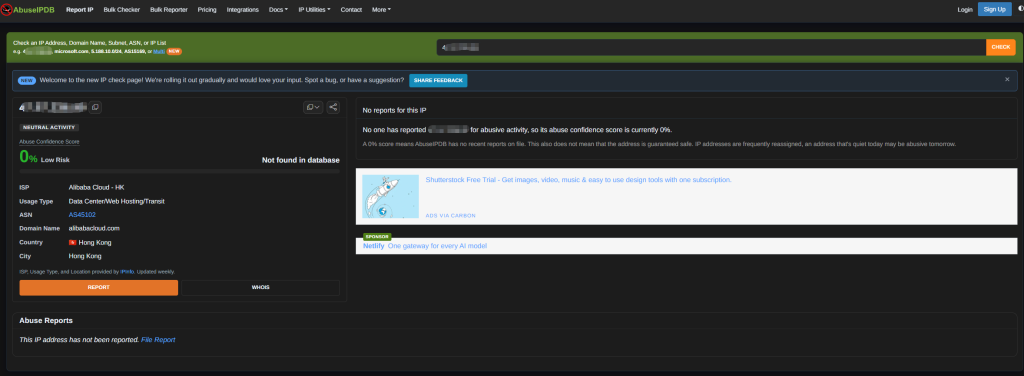
Abuse Confidence Score
The score ranges from 0% to 100% and is calculated based on factors such as abuse reports submitted to the platform and their timestamps. The message “No reports for this IP” appears on the right side of the example, indicating that no abuse reports were found for the IP within the current query period. As a result, the score is 0%.
However, a score of 0% only means that the platform has not established a valid abuse confidence score based on the available records. It does not mean the IP is completely safe or prove that the address has never been involved in unusual activity. Since IP resources are dynamically assigned, the absence of records within the current query period does not guarantee that issues will not arise in the future.
Total Reports
This metric shows how many times the IP address has been reported within the current query period. In the screenshot, there are no abuse reports, so the value is zero. If reports are available, the number represents the total reports received during that period.
Keep in mind that a high report count does not necessarily mean the IP currently poses a high risk. An IP with numerous historical reports but no recent activity is different from one that has suddenly received a large number of reports within a short period. These situations should be interpreted differently.
Num Distinct Users
This metric shows how many different users submitted reports within the current query period. For example, if an IP receives 20 reports from the same person, the number of distinct users is only 1. If 10 reports come from 8 different users, the reporting sources are relatively distributed.
Reports from multiple independent users can provide additional reference information, but they should not be treated as conclusive proof of abuse on their own.
Last Reported At
This field shows the most recent time the IP was reported and helps assess how recent the abuse records are. This field is not displayed in the screenshot because there are no reports. If reports are available, recent reports generally provide more timely reference information than reports submitted a long time ago.
Usage Type
This field indicates the network usage type identified by the database. Common examples include Data Center and Fixed Line ISP. In the screenshot, the IP is classified as Data Center/Web Hosting/Transit, indicating that it is identified as a data center or hosting network rather than a typical residential broadband connection.
This label can help assess the network environment, but being classified as Data Center does not automatically mean the IP is risky. Its suitability should be evaluated in the context of the intended use.
In addition to reviewing abuse records on individual platforms, you can also learn more about how to check IP reputation and assess an address’s historical activity through abuse reports, blocklist records, and other reputation indicators.
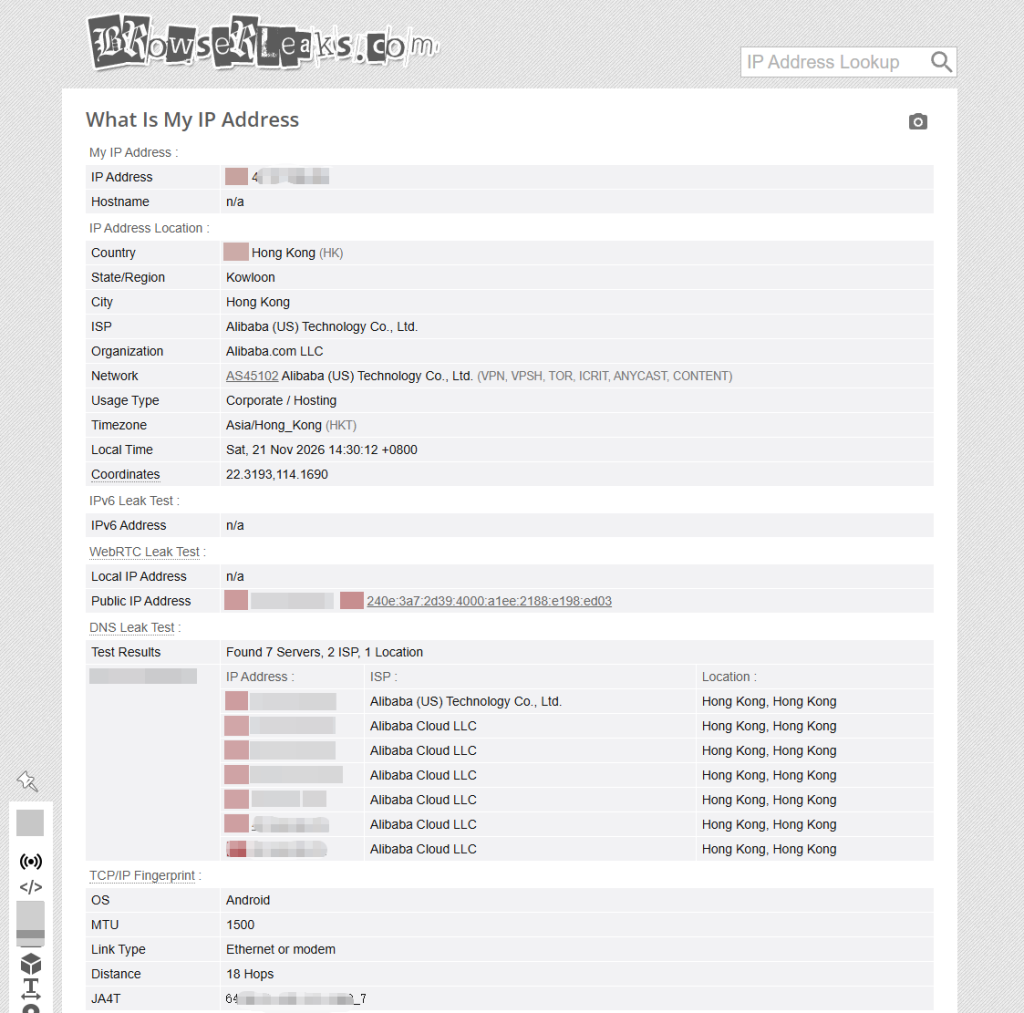
Basic Information and WebRTC Detection
The IP Address at the top of the page is the public IP address used by the current browser. In the WebRTC Leak Test section below, Local IP Address is displayed as n/a, meaning that this module does not show a local network address.
However, Public IP Address lists both a public IPv4 address and an IPv6 address (240e:…). This indicates that the WebRTC test has detected these public addresses. If the addresses shown here do not match your expected network exit, you can further check your browser’s WebRTC settings and current network connection.
DNS Leak Test: DNS Server Location
This section displays the DNS servers identified during the test. The screenshot shows 7 detected DNS servers (Found 7 Servers), all with Alibaba Cloud listed as their ISP and Hong Kong as their Location.
This indicates that the network ownership information for the DNS servers listed in the results primarily points to Alibaba Cloud resources in Hong Kong. Although the DNS servers and public IP share the same geographic region, this only indicates that there is no obvious regional discrepancy. It does not prove that the DNS resolution path is completely free of issues.
If there is a significant geographic difference between them, you can also check your device’s DNS settings, router configuration, and factors such as DoH/DoT to investigate further.
TCP/IP Fingerprint: System Environment Characteristics
The bottom of the page displays fingerprint information about the device environment. The OS field in the screenshot shows Android. However, when compared with the User-Agent in the HTTP request headers (which may typically show Windows or macOS), the two may indicate different operating systems.
This difference can serve as a reference for further checking the browser environment. However, TCP/IP Fingerprinting and User-Agent detection use different identification methods, so a discrepancy alone is not enough to conclude that the browser environment is abnormal.
IPv6 Leak Test: Protocol Exposure
The IPv6 Address field in the screenshot displays n/a, indicating that the standard IPv6 test did not retrieve an address for display. However, this differs from the IPv6 address (240e:…) detected in the WebRTC test above.
This shows that the two detection modules have returned different results, which may be related to their testing methods and network paths. This discrepancy alone does not prove that an IPv6 leak has occurred.
If your business environment is expected not to use IPv6, you can further verify the actual connection by using a detection page that supports IPv4 only.
After learning how to interpret the different fields, it is also important to avoid treating individual results as definitive conclusions:
IP detection results should be interpreted in the context of data sources, network configurations, and business requirements. A single label or value can only provide information about one aspect of an IP address.
IP detection covers several areas, including basic IP information, network ownership, historical reputation, and browser connection environments. Different tools focus on different aspects, so users should choose platforms according to their needs rather than relying on a single score or label to determine an IP’s overall status.
During an actual IP check, start by verifying the public IP address and its geolocation. Then review the ASN and network type, followed by WebRTC and DNS connection checks. Finally, examine recent risk records through platforms such as AbuseIPDB to form a more complete assessment.
When results from multiple platforms do not match, prioritize the country and region when reviewing geolocation, and use ASN and ISP information to assess network type. Risk scores from different platforms should not be compared directly because their scoring standards may vary. If only a few fields show discrepancies, record the differences rather than expecting every detection result to match perfectly.
Understanding key metrics and cross-checking information from multiple sources can help you gain a more accurate picture of an IP address.
Not necessarily. Public IP addresses may be dynamically assigned or allocated to users for extended periods by their service providers. A dynamic IP may change when the network reconnects, a lease is renewed, or the provider makes network adjustments. A static IP is generally designed to remain unchanged during the agreed service period, although the exact arrangement depends on the provider’s allocation policy.
The address shown in your computer’s network settings may be a private IP address, which is used for communication within a local network. An IP lookup website typically displays your public IP address, which is the address used by your device when accessing external services through the network. These addresses serve different purposes, so it is normal for them to be different.
In most cases, yes. If both devices access the internet through the same network gateway, they will generally share the same public IPv4 address. However, the results may differ if the devices use different network connections, have separate IPv6 exits, or use other network configurations.
First, check whether your IP address has changed and whether your current network connection is working properly. Then review whether the website has account restrictions, access frequency limits, or other security verification requirements. If the issue persists, contact the website’s support team to find out the specific reason. Avoid relying solely on an IP reputation score to determine why access has been restricted.
Exclusive 1024proxy Blog Reader Offer – First-Order Discount for New Users
1024proxy offers premium residential IPs for diverse business needs.
Use code uROEztvZMk at checkout for 5% off your first order.
For IP purchasing or usage assistance, contact us at: support@1024Proxy.com
Telegram
 Sales Manager

@proxy1024

 Sales Manager

@proxy1024_com
Private transfers are not accepted. Please make the payment through the official website!
Emai
Official Email
support@1024proxy.com 
-Provide your account and describe the issue you encountered.
- We will respond within 24 hours.